Our platform manages large datasets, often containing thousands or millions of records. To efficiently find relevant information, we offer robust search and filter functionalities.
Global Searching
The global search box  is located in the table title bar, as shown in Figure 1. Enter a keyword here to search across all columns in the table for records containing that keyword.
You can use the search box to find records containing your entered keyword in any column.
Filtering
Click the filter button ( ) in the title bar to activate column filtering. A funnel icon will appear next to each column (refer to Figure 1), and a filtering interface will pop up. Enter your filter criteria and click Apply to see the filtered results.
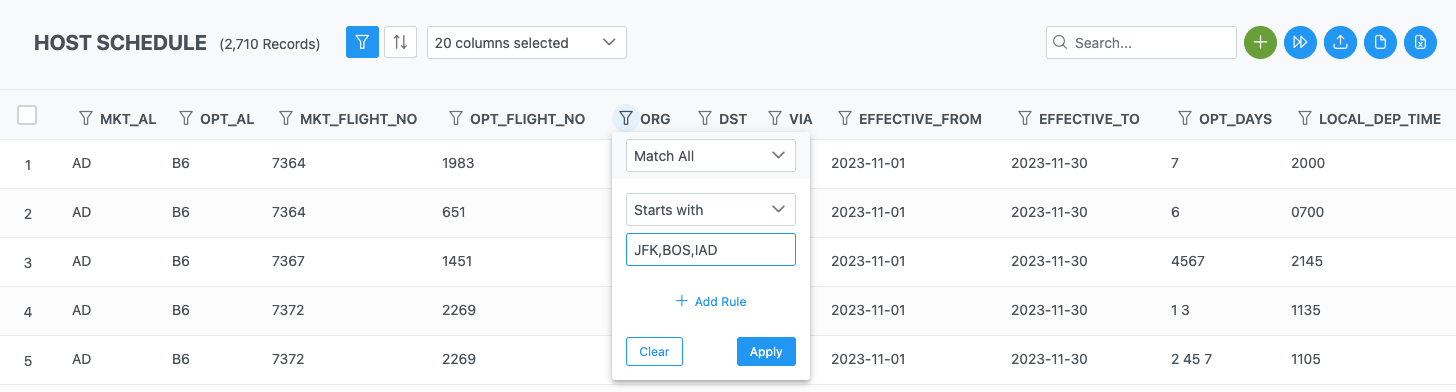
You can filter a string-type column in a table using multiple values, separating each with a comma.
Matching Methods
Different matching methods are available, depending on type of the column to be filtered.
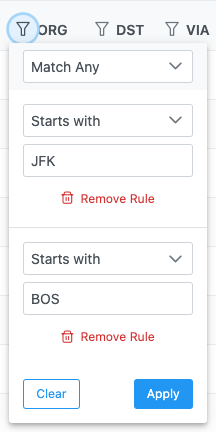
- String Type Columns (see Figure 2):
- Starts with: Finds values starting with the entered text.
- Contains: Searches for values containing the entered text anywhere.
- Not contains: Selects values excluding the entered text.
- Ends with: Looks for values ending with the entered text.
- Equals: Matches values exactly equal to the entered text.
- Not equals: Excludes values identical to the entered text.
- Note: All string matching is case-sensitive.
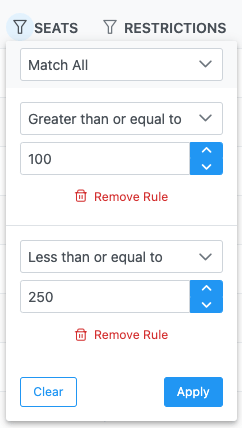
- Number Type Columns (see Figure 3):
- Equals: Matches the exact entered number.
- Not equals: Excludes the entered number.
- Less than: Finds values smaller than the entered number.
- Less than or equal to: Includes values up to the entered number.
- Greater than: Selects values larger than the entered number.
- Greater than or equal to: Includes values starting from the entered number.
- Date Type Columns:
- Date is: Matches the specific entered date.
- Date is not: Excludes the specific entered date.
- Date is before: Selects dates earlier than the entered date.
- Date is after: Chooses dates later than the entered date.
Filtering Multiple Values
To filter two values, input your first desired value into the filter field, click + Add Rule to create a new filtering block, then enter you second value. Before applying the filters, select Match Any from the first dropdown (see Figure 2) to find records matching either of the two values.
The default Match All option will only show records that meet both criteria. Use Match All for filtering with two conditions. For example, to filter records with seat counts between 100 and 250, apply two separate conditions (illustrated in Figure 3).
To filter with more than two values, input the values separated by commas. For instance, to filter the ORG column for flights from JFK, BOS, or IAD, enter JFK,BOS,IAD (as shown in Figure 1). This will return records from any of these locations.
Filter Multiple Columns
You can add similar filters to multiple columns. Records need to meet all specified conditions across these columns to be displayed.