
Our platform provides several sorting functionalities for versatile and efficient organization of table data, enhancing data analysis and readability.
Single Column Sorting
To sort any table by a specific column, click the column title. The first click sorts the table in ascending order based on that column. Click again to sort in descending order.
Sorting Indicators
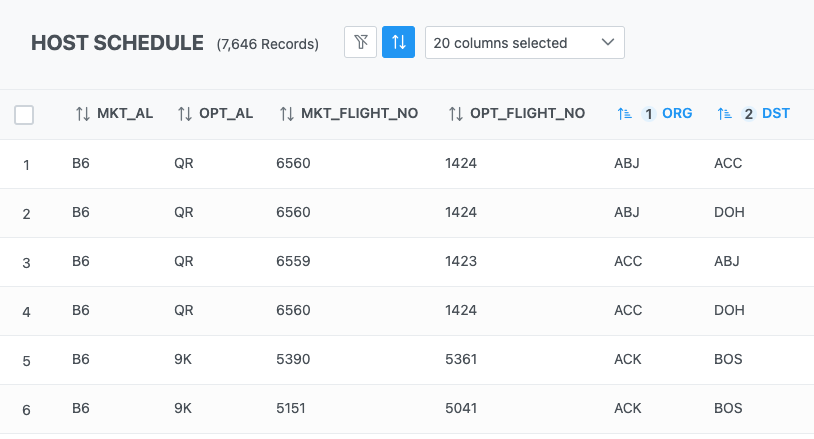
As shown in Figure 1, there is a sorting button ( ) in the table title bar. Upon clicking the button, an icon
  will appear in front of each column title. Clicking a column will change this icon to either an upward arrow (
 ) for ascending order, or a downward arrow (
 ) for descending order.
Multi-Column Sorting
The system also supports multi-column sorting. To do so, click the first column for sorting, then hold the ‘Control’ key (Windows) or ‘Command’ key (MacOS), and click additional columns in the order you want them sorted.
Each selected column will display a number, as shown in Figure 1 for column ORG and DST, denoting the order in which the table will be sorted. The table will then be sorted sequentially based on your selection, either in ascending or descending order for each column.
To toggle between ascending and descending order for any column, simply click on the column title while holding the Control/Command key.